Read
Review the dining notice and allergy guidance before ordering.
 View Pricing
NEW BRUNSWICK · REAL TABLET WALKTHROUGH
Follow the actual Sakana tablet screens from the opening notice to your first kitchen order. Every screenshot below can be opened full size.
FIRST TIME AT SAKANA?
This short English walkthrough explains how to use the tablet and place your AYCE order. You can also continue below for the complete step-by-step guide with real tablet screenshots.
THE ONE THING TO REMEMBER
Add to Cart saves an item in the right-hand cart. It has not been ordered until you review the cart and press Send to Kitchen. Repeat this every time you place a round.
Review the dining notice and allergy guidance before ordering.
Use the category list on the left and tap a dish to see its details.
Check options, paid add-ons, quantity, and the cart before sending.
Press Send to Kitchen. The next order can be placed after the 10-minute interval.
STEP 01 · BEFORE ORDERING
When the tablet opens, review the dining notice. It summarizes timing, leftovers, service charge, drinks and ice cream, children's AYCE, and last call.
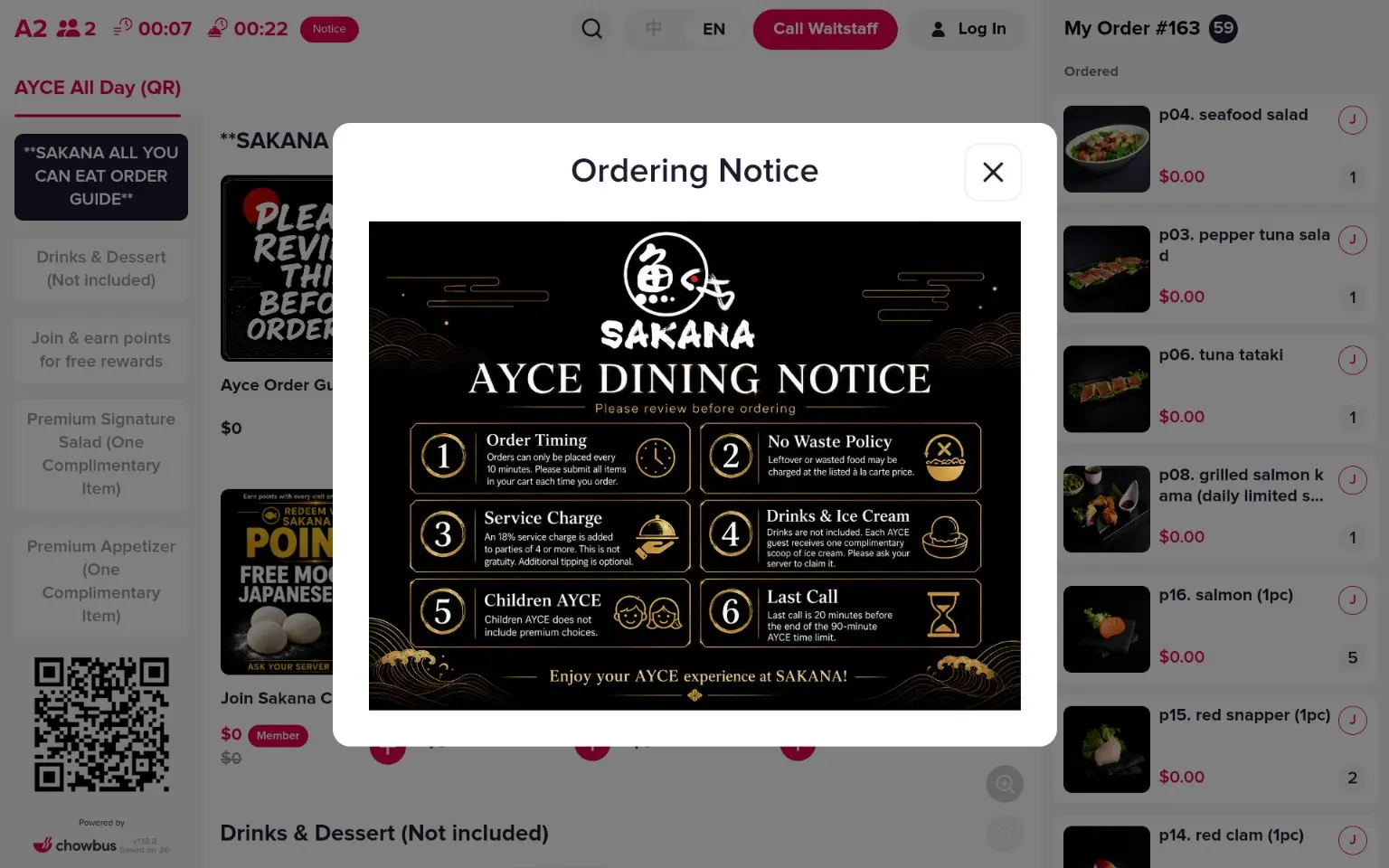 READ THE OPENING NOTICE
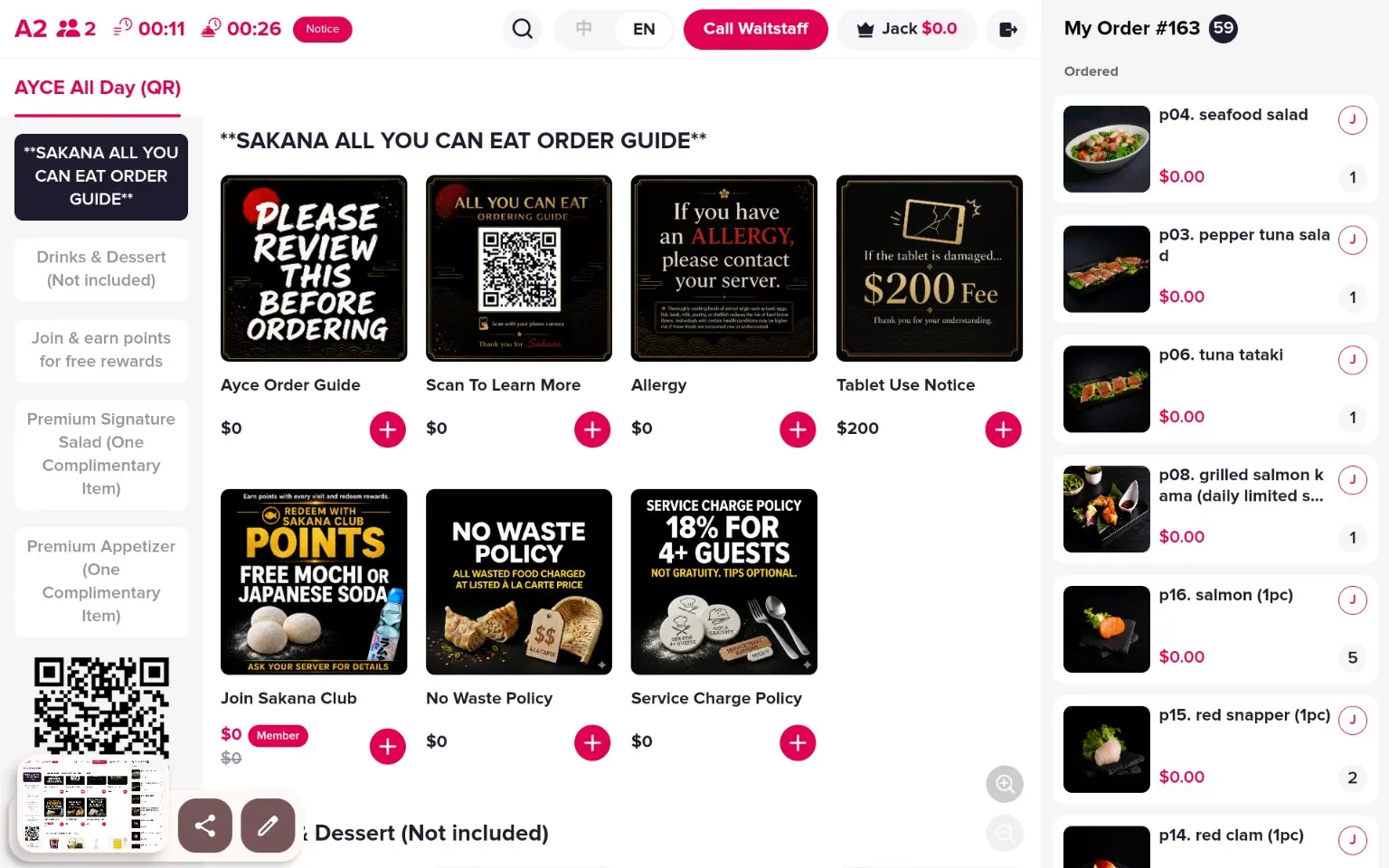 ORDER GUIDE CATEGORY
Select SAKANA ALL YOU CAN EAT ORDER GUIDE in the left category list. The cards in the center reopen the guide, allergy notice, no-waste policy, service-charge policy, and tablet-use notice.
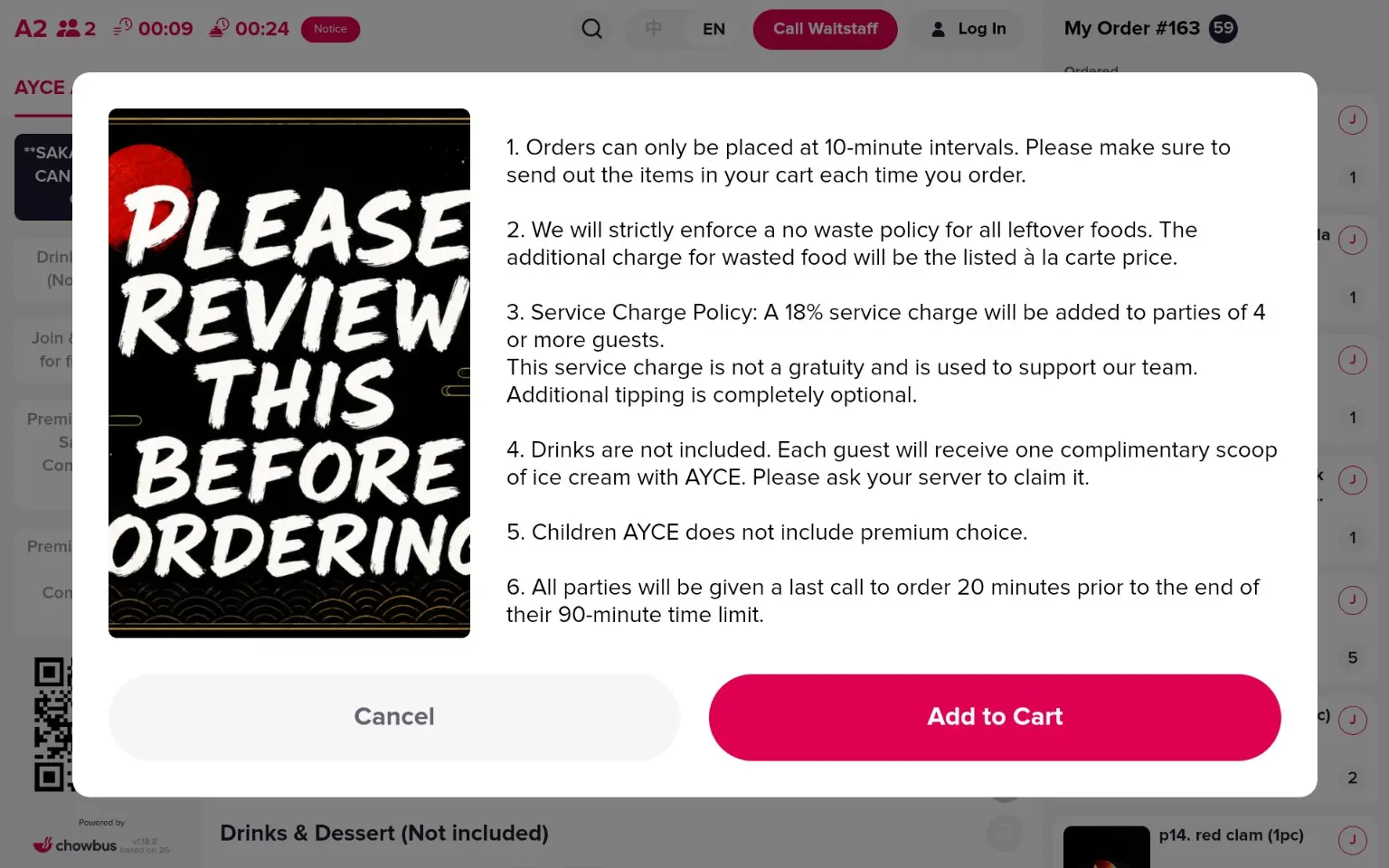 FULL POLICY TEXT
Tap the AYCE Order Guide card if you want to reread all six policies during your meal. Close the window with X when finished.
STEP 02 · BROWSE
Left: menu categories. Center: available dishes and the pink + button. Right: your cart and the history under My Order.
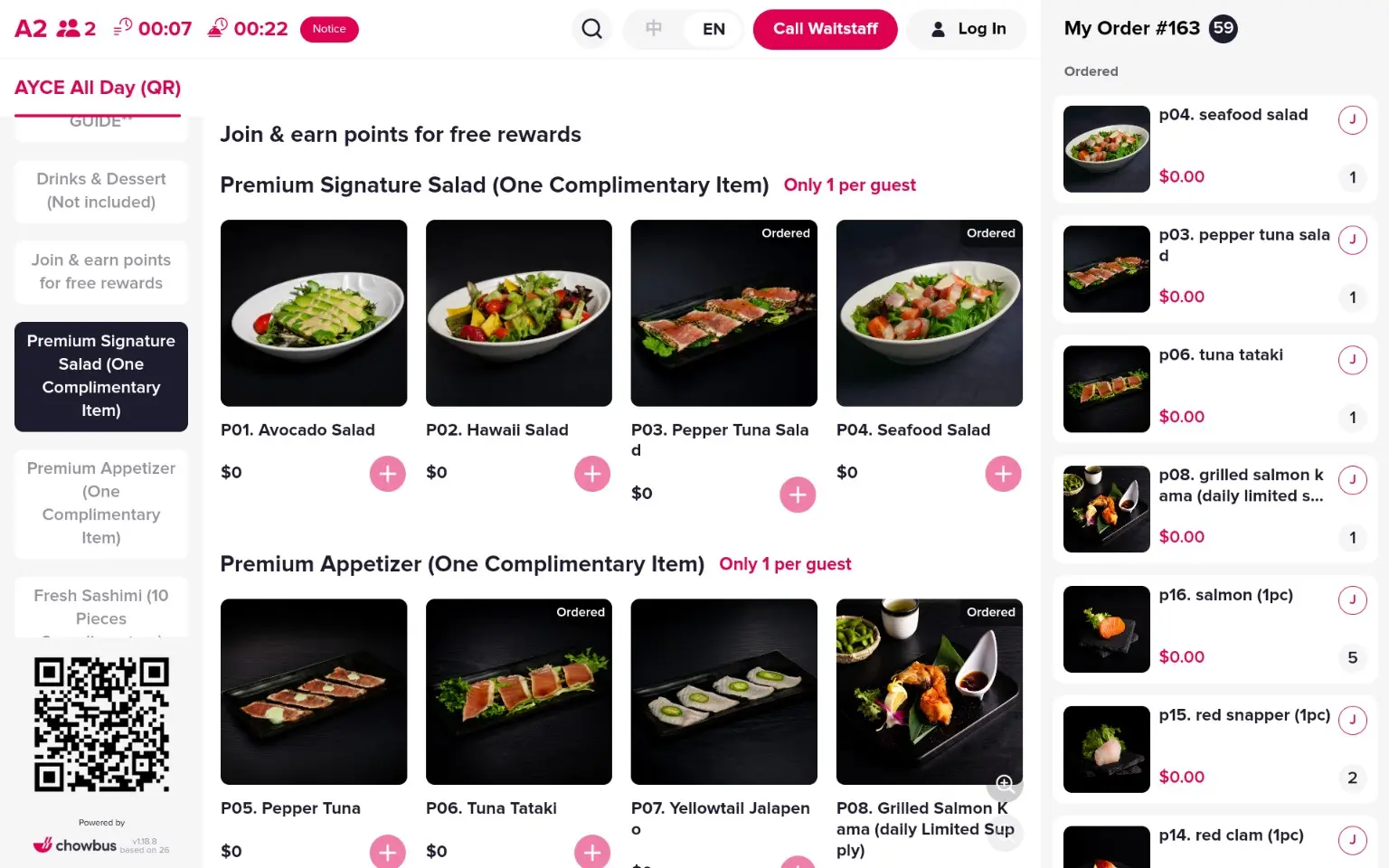 CATEGORY · ITEMS · ORDER HISTORY
The table code and number of registered guests appear together.
Watch the timing indicators, change language, search, call staff, or log in.
Move between guide, premium, sushi, rolls, appetizers, kitchen dishes, and more.
Cart is waiting to be sent. My Order is the history already submitted.
STEP 03 · OPEN & CUSTOMIZE
Tap a dish or its + button to open the detail window. Review the description and allergen information, then select only the options you want.
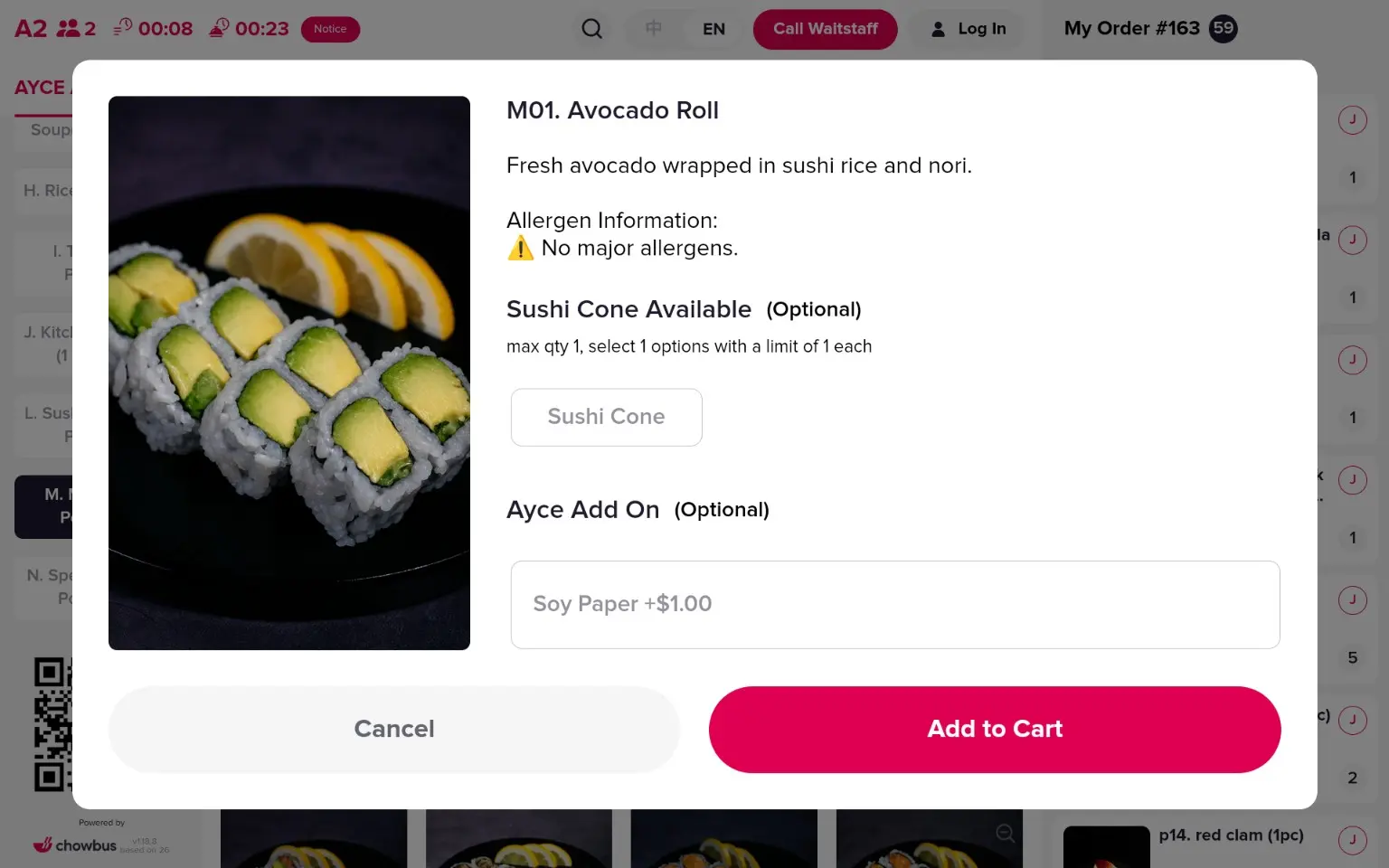 ITEM DETAILS
The item window may include allergen information and optional choices such as a sushi cone. Pressing Add to Cart only places the selection in the cart—it does not send it.
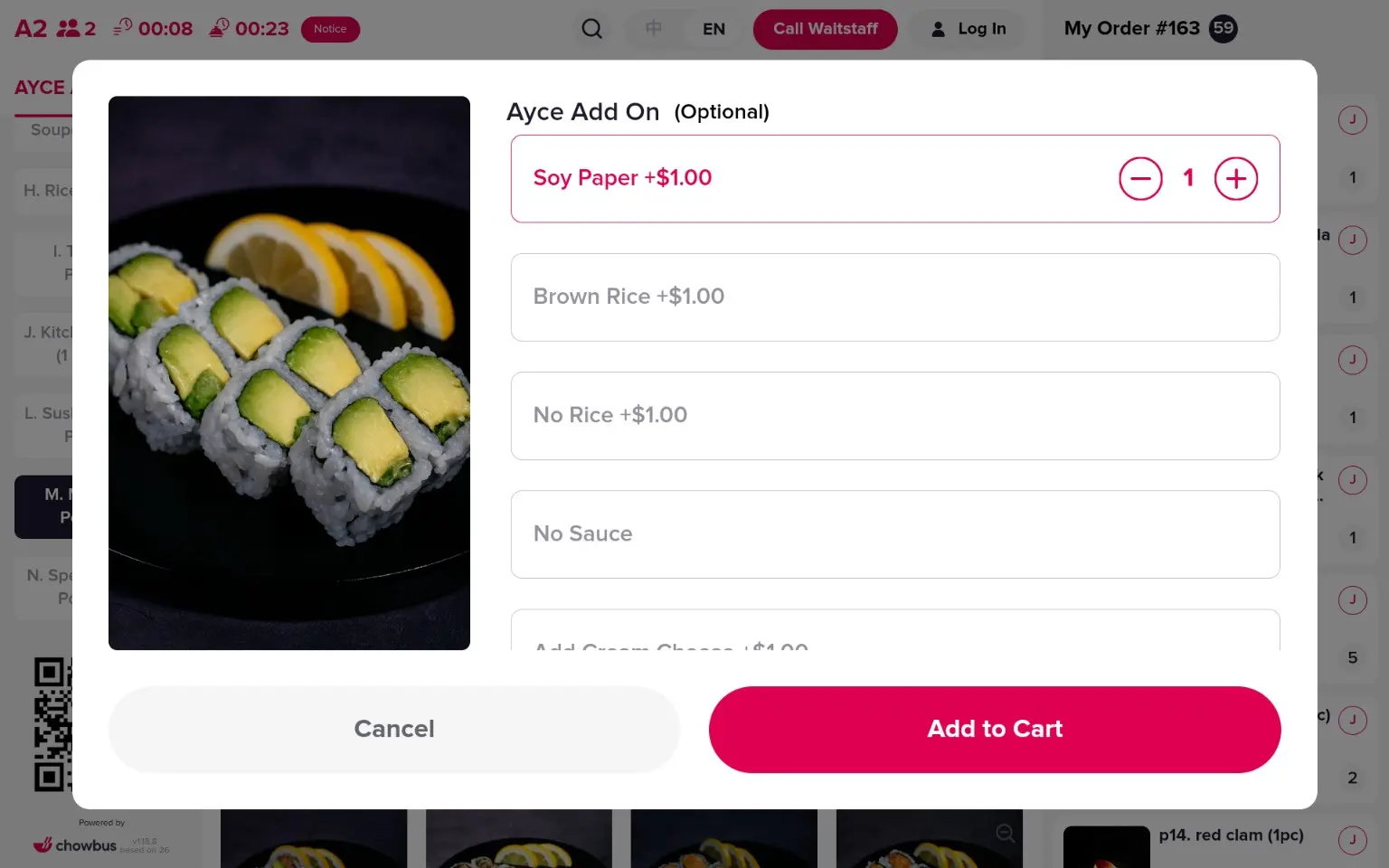 CHECK OPTIONAL ADD-ONS
Paid options show the additional price directly on screen, such as soy paper, brown rice, or no rice. A pink outline indicates the selected choice. Confirm the quantity, then press Add to Cart.
STEP 04 · REVIEW & SEND
This is the most important screen in the guide. Your current cart appears at the top right. Review it before sending the round to the kitchen.
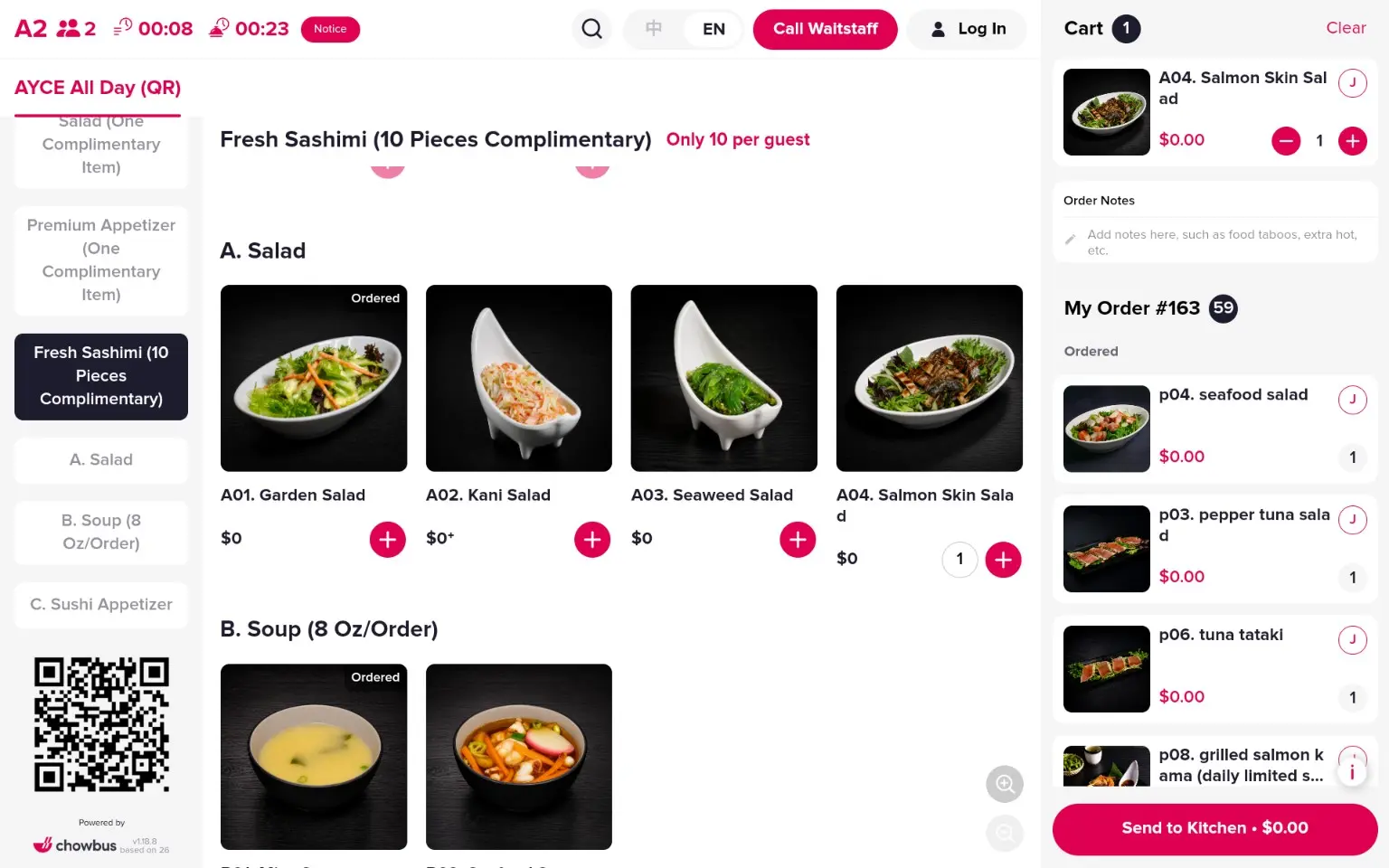 PRESS SEND TO KITCHEN
Items left in Cart have not been ordered. Send the cart every round.
STEP 05 · ASK FOR SERVICE
Need water, want to check out, or need help? Press the pink Call Waitstaff button at the top of the tablet.
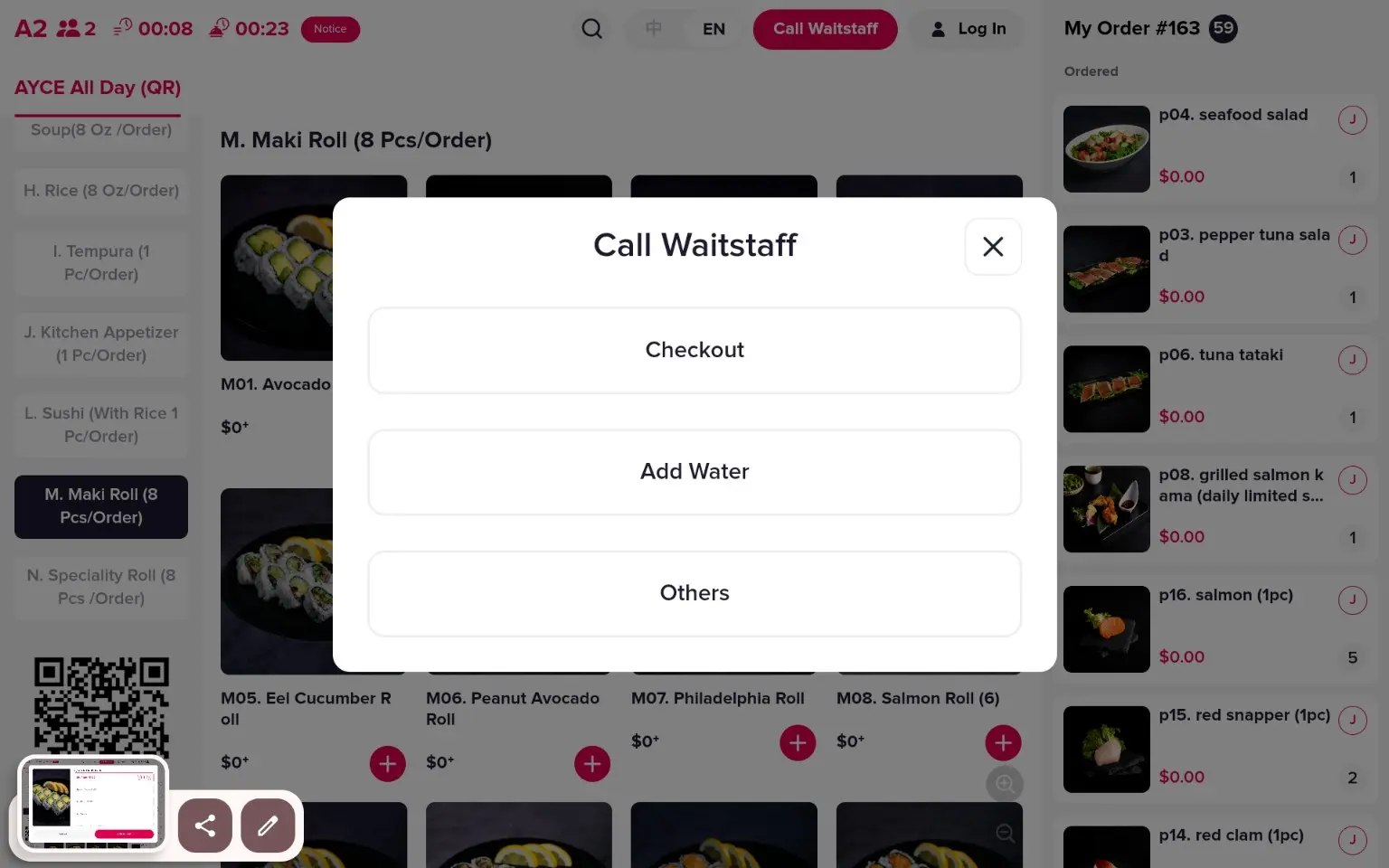 CALL WAITSTAFF
Select the request that best matches what you need. Use Others for help not covered by Checkout or Add Water. If the tablet is unresponsive or an allergy needs attention, speak to a team member immediately.
OPTIONAL · SAKANA CLUB
Use Log In in the top bar or select Join & earn points for free rewards from the left menu. Membership is connected by phone number.
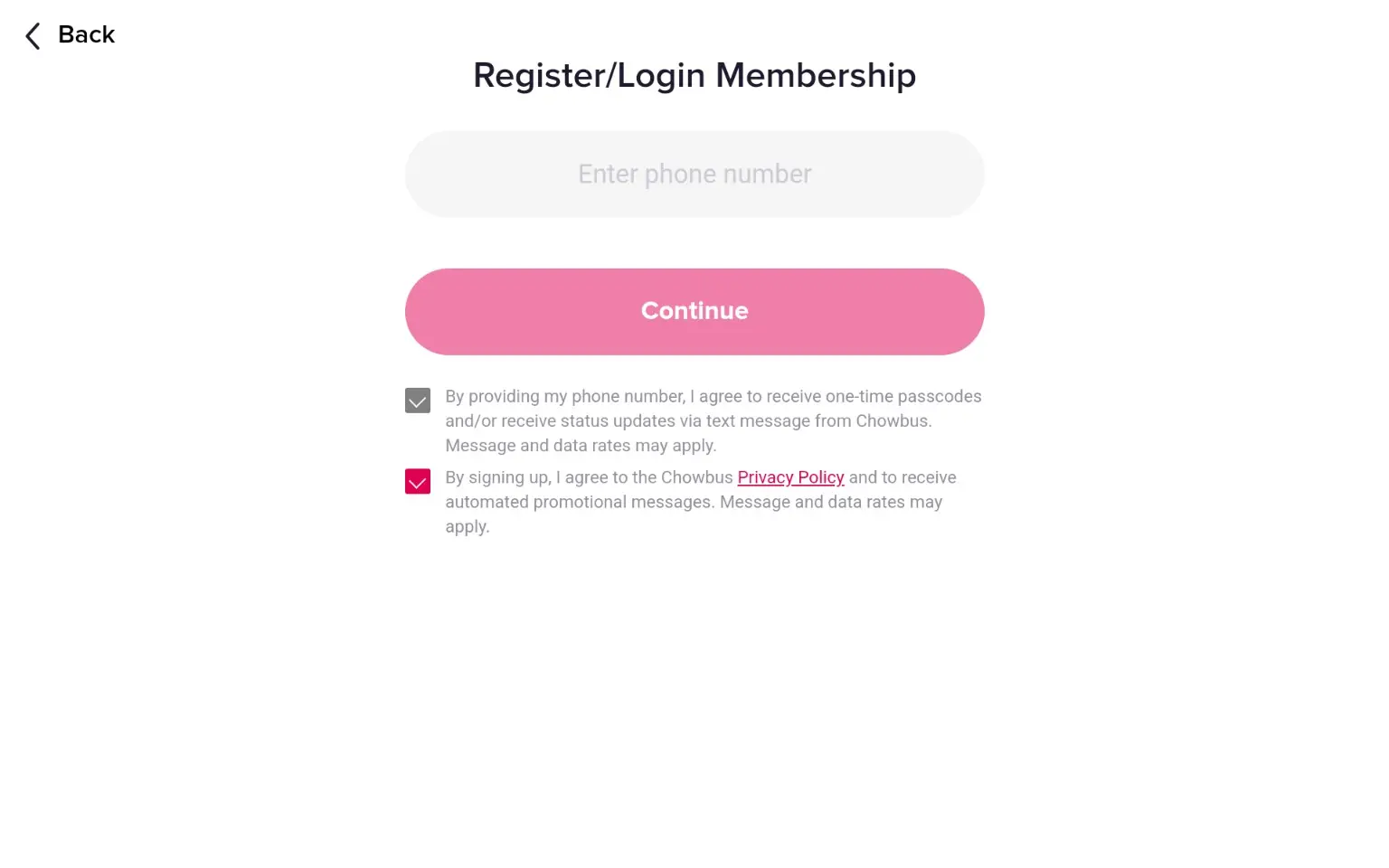 REGISTER / LOG IN
Enter your mobile number, review the consent choices shown on screen, and continue. Returning members can use the same number to access their account.
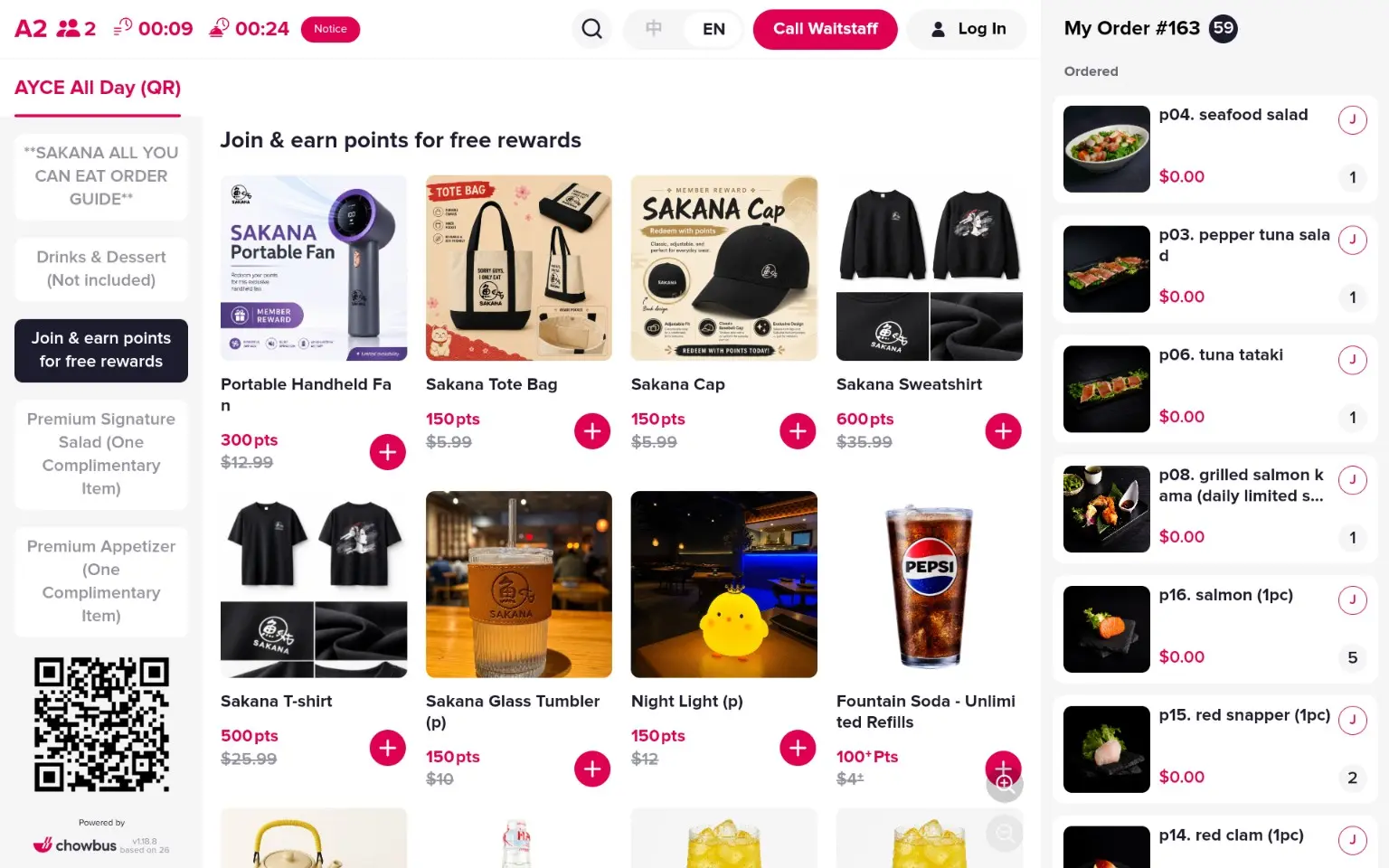 BROWSE REWARDS
The rewards category shows available items and their point values. Earn one point for every $1 spent, then redeem eligible rewards when you have enough points.
JOIN BEFORE YOUR VISIT
You can also register online, then use the same phone number on the restaurant tablet.
FINAL REMINDER
Smaller rounds make it easier to try more dishes while keeping food fresh and reducing waste.
Send every round with the Send to Kitchen button.
Wait for the 10-minute ordering interval before sending the next round.
Leftover food is charged at the listed à la carte price.
Tell your server directly about allergies and ask whenever you need help.